RDCMan is intentionally focused. Its value comes from making repeated Remote Desktop administration easier: organizing servers, applying shared settings, moving among active sessions and keeping the connection catalog manageable. It is not positioned by Microsoft as a broad monitoring or privileged-access platform.
The current Microsoft documentation is unusually detailed about the connection tree, server and group properties, credential profiles, display settings, gateway behavior, virtual groups and command-line switches. The sections below focus on those documented capabilities rather than expanding the feature list with assumptions.
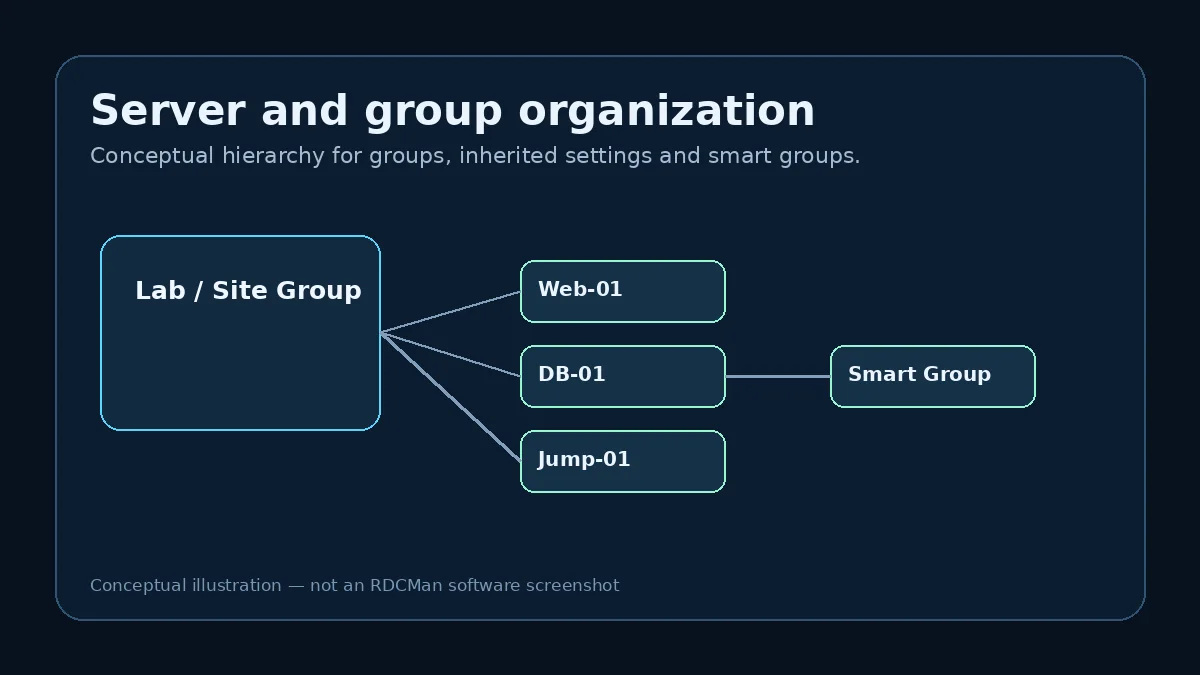
Named groups and hierarchical organization
Servers are organized into named groups. A group can represent a lab, environment, site, function or another stable boundary. Administrators can connect or disconnect servers at group level, and the tree makes it possible to move through a large set of targets without maintaining separate shortcut files.
Groups also form the inheritance chain for connection preferences. Microsoft notes that groups are homogeneous: they contain either servers or groups. That rule encourages deliberate hierarchy design and is important when planning an import or a migration from a less structured list.
Inherited settings and reusable configuration
RDCMan can inherit logon and other settings from a parent group. Shared configuration can therefore live at an appropriate parent level while exceptional hosts override only the values that differ. This is useful for display properties, local resources, gateways and other connection options.
Inheritance reduces maintenance effort but increases the importance of understanding scope. Before changing a parent setting, ask how many child systems use it. A seemingly small edit can affect every connection below that group.
Thumbnails and active-session navigation
Microsoft documents a thumbnail view that shows live action for servers in a group. For an operator working across multiple machines, this provides situational context without opening each session as a separate full-size window.
Thumbnails should be viewed as a navigation and awareness feature, not a monitoring system. RDCMan is still handling RDP sessions; it does not replace telemetry, alerting or endpoint-management tooling.
Credential profiles and password protection
Credential profiles let administrators reuse logon details instead of entering the same values on every server. Microsoft documents password encryption through CryptProtectData under the local user context or an X.509 certificate. Profiles can simplify password changes for a lab or other repeated environment.
Operational policy still matters. A convenient credential profile does not create approval workflows, privileged-session recording or a full enterprise vault. Use the feature within the limits of your organization’s identity and workstation security controls.
Smart and virtual groups
The current documentation describes smart groups and virtual groups such as Connected, Reconnect, Favorites, Connect To and Recent. These views help operators work from session state or usage patterns rather than only the static hierarchy saved in the RDG file.
Use them as alternate views, not as a substitute for a good base structure. A clean permanent hierarchy remains important for predictable inheritance and long-term maintenance.
Display, local resources and gateway settings
RDCMan exposes settings around remote desktop size, local-resource redirection and Remote Desktop Gateway use. Microsoft’s FAQ notes that an already-connected remote desktop cannot simply be resized in place; the session must disconnect and reconnect, and RDCMan can be configured to reconnect with a new resolution in relevant display scenarios.
For gateway connections, Microsoft’s FAQ specifically says gateways must be specified as fully qualified domain names when addressing error 50331656. That is a good example of why product-specific troubleshooting should be based on current documentation rather than generic RDP advice.
Command line and policy controls
Microsoft documents command-line switches including /reset, /noopen, /c for connecting specified servers, /reconnect and /noconnect. These options can help with repeatable startup behavior or troubleshooting persisted application state.
The documentation also describes an RDCMan policy registry location and a DisableLogOff policy value. Policy controls should be evaluated in context, especially on shared administration workstations where a dangerous or disruptive action may need to be restricted.
How features work together in practice
RDCMan’s individual features are most valuable when combined deliberately. Groups provide structure; inheritance reduces repeated configuration; credential profiles reduce repeated account entry; thumbnails and virtual groups improve navigation; gateway and display settings shape how the RDP session is opened. Treating these as one workflow is more useful than enabling every option independently.
For example, a lab group can inherit a gateway and a standard display size, child servers can inherit those values, and a credential profile can be referenced where the account scope is appropriate. Favorites can then expose the handful of systems an operator uses daily without moving them out of their permanent groups. The result is a stable configuration hierarchy plus flexible working views.
Feature selection should follow the risk of the task
Convenience features can increase scope. A group-wide connect command affects many targets; a parent credential can be inherited by many servers; local-resource redirection can expose workstation resources to remote sessions. The right question is not “does RDCMan support this?” but “at what scope should we use it?”
Review high-scope settings before they are placed on a parent group. Keep exceptional servers exceptional rather than weakening a safe default. If a capability would bypass an organization’s privileged-access, gateway, or endpoint-control policy, the policy should win even when the RDCMan option is technically available.
Practical checklist
- Organize first, then use group commands.
- Use inheritance to reduce duplicate settings.
- Treat thumbnails as navigation, not monitoring.
- Use credential profiles within your security policy.
- Consult Microsoft for gateway, display and command-line specifics.