RDCMan becomes useful when you treat it as a structured connection catalog rather than a pile of RDP shortcuts. The beginner workflow is straightforward: create an RDG file, add groups, define reusable settings, add servers, connect to a small test set and save the configuration.
The details matter because RDCMan is designed around inheritance. A server can use settings inherited from a parent group, so a decision made high in the tree may affect many child connections. Beginners should therefore build from the top down and test each layer before importing a large inventory.
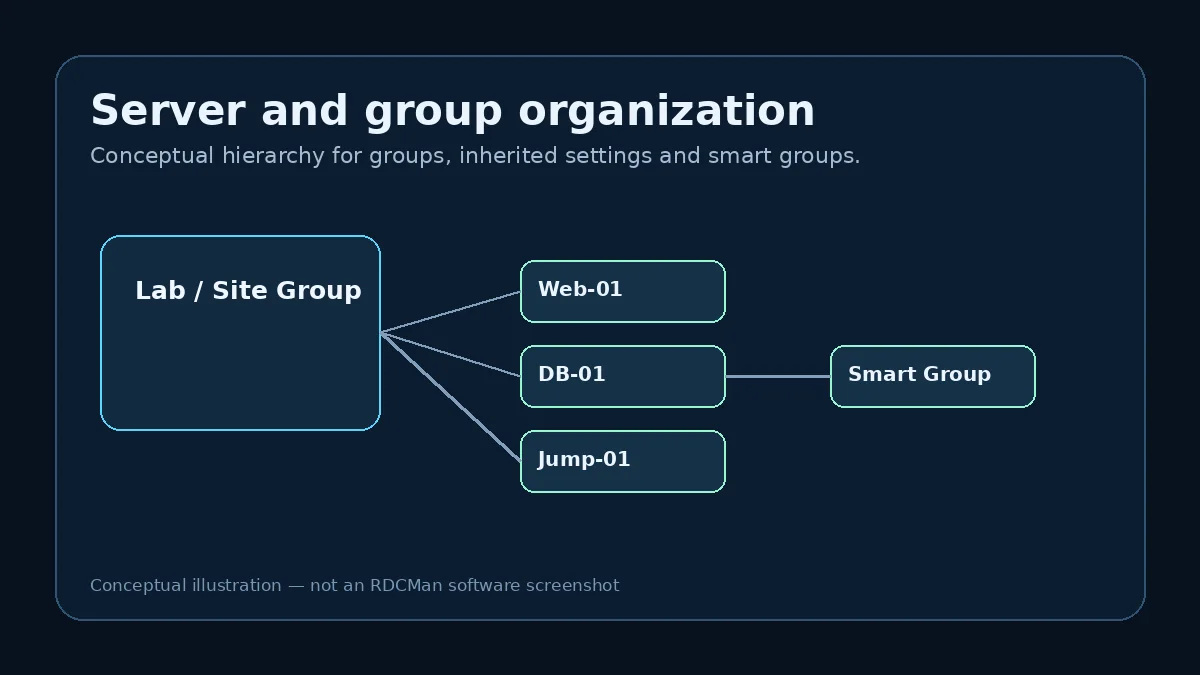
Start with one RDG file and a simple hierarchy
Create a new RDG file for a logical administration scope. That could be a lab, a site, an environment or another boundary that stays meaningful over time. Avoid creating a separate file for every server because doing so throws away much of the value of group-level organization.
Within the file, add groups that match how you actually work. For example, a small environment might use Production, Test and Lab, with nested groups for application roles. Remember the current RDCMan group rule: a standard group contains either groups or servers, not both. Design the levels with that constraint in mind.
Add servers with clear display names
A server entry needs a connection target and can have a separate display name. Use naming that helps the operator make the right choice under pressure. A friendly label such as “DB-01 — Reporting” can be more useful than a bare IP address, while the actual connection target can remain the resolvable host name.
Microsoft also documents server import from text. Imports are convenient for larger inventories, but they should follow a tested group and settings model. Adding hundreds of targets before credentials, display behavior and gateways are validated can turn a small configuration mistake into a large cleanup task.
Use inherited settings intentionally
Inheritance is one of the strongest reasons to use RDCMan. Put shared connection preferences at the group level, then override only the servers that genuinely differ. This reduces duplication and gives you a central place to change settings when a lab account, gateway or display requirement changes.
After setting a group preference, inspect at least one child server and test the resulting session. When something behaves unexpectedly, check whether the field is inherited or overridden locally. Configuration troubleshooting is much faster when you know which level owns the value.
Connect, observe and disconnect
RDCMan can connect or disconnect an entire group with one command, and it can show servers in a group as thumbnails with live action. Group commands are convenient, but use them carefully in production. Opening many sessions at once can create unnecessary load, and a group-level disconnect may affect more work than intended.
For normal navigation, connect to one or a few servers, confirm that the session opens with the expected resolution and local-resource behavior, and use the tree to move between them. The goal is an orderly operator workflow, not the maximum number of simultaneous windows.
Save the configuration and establish a backup habit
Save the RDG file after a known-good set of changes. If the configuration is important, keep backups according to the same change discipline you use for other administrative configuration. Do not assume an RDG file is harmless simply because it is not an executable; it can contain infrastructure metadata and connection preferences.
Before a major edit or RDCMan version change, make a copy that is easy to identify. The current Microsoft upgrade note is especially relevant because files saved with the current release are not compatible with older RDCMan versions.
A clean beginner workflow
- Create a new RDG file for one logical environment.
- Add a small group structure.
- Configure inherited settings at the highest sensible level.
- Add two or three test servers.
- Connect and verify credentials, display and local resources.
- Adjust exceptions at the server level only when necessary.
- Save and back up the known-good configuration.
- Expand the inventory after the model is proven.
This sequence makes errors easier to isolate than importing a large server list first and trying to discover later which inherited setting is responsible.
Example: building the first useful tree
A beginner can learn RDCMan faster by modeling one real environment instead of exploring every setting at once. Start with a lab that has perhaps six servers. Create the RDG file, add one top-level Lab group, then child groups for application and database roles. Put only genuinely shared settings at the parent level. Add two servers first, connect to them, and confirm that the effective credentials and gateway settings are what you intended.
Only after that baseline works should the remaining servers be added. This staged approach teaches the relationship between hierarchy and inheritance. It also makes mistakes visible: if both test servers fail after one parent change, inspect the group; if only one fails, compare that server’s local values. The structure itself becomes a troubleshooting aid.
Habits that keep a beginner configuration maintainable
Avoid turning every exception into a new group. Some hosts genuinely need local overrides, but a tree with dozens of one-server groups usually signals that the hierarchy is being used as a workaround for unclear defaults. At the other extreme, one giant group can make high-scope actions and inherited credentials too broad.
Review the file after the first week of use. Rename labels that are hard to scan, remove test entries, move settings to a parent only when several children truly share them, and back up the known-good file. That small cleanup converts a learning configuration into something an administrator can depend on.
Practical checklist
- Use stable groups instead of ad-hoc folders.
- Prefer resolvable host names and meaningful display names.
- Place common settings at group level and minimize overrides.
- Test group commands carefully before using them in production.
- Save and back up known-good RDG files.