Adding a server in RDCMan is easy; adding hundreds of servers in a way that remains understandable is the harder part. The server entry sits inside a group and participates in that group’s inherited settings, so inventory design and settings design should be treated as one task.
The current Microsoft documentation supports manual server creation and importing server names from text. It also explains an important import behavior: if an imported server name already exists, the existing server’s preferences are updated rather than simply creating another identical entry. That makes a review of source lists important before bulk changes.
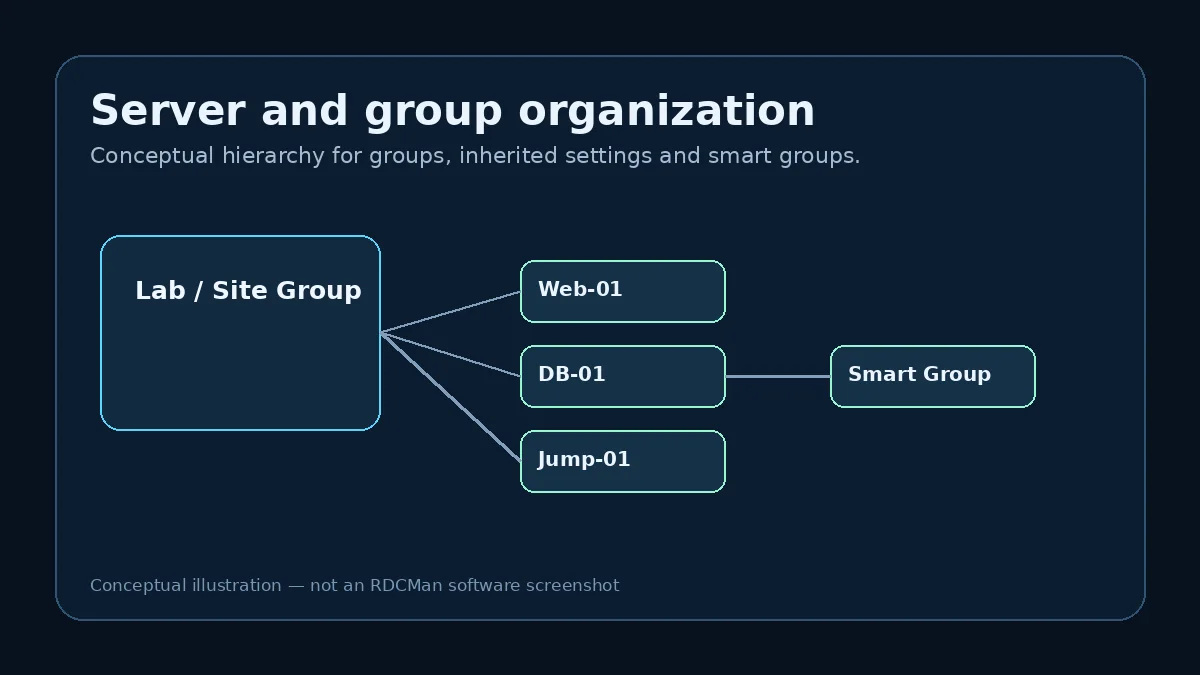
Choose the destination group first
Before adding a server, decide which group should own it. The correct group is the one that matches the server’s stable operational context and the settings it should inherit. If a database server belongs to the same credential, gateway and display policy as other database hosts, that group is a natural location.
Avoid using the group tree only as a visual folder list. It is also a configuration hierarchy. Moving a server to another group can change the settings it inherits, so a tidy tree and predictable connection behavior are closely linked.
Add a server manually
- Select or right-click the intended server group.
- Use the option to add a server.
- Enter the actual connection target, preferably a stable resolvable host name when your environment supports it.
- Set a display name that makes the host’s purpose obvious to operators.
- Review inherited settings and override only the fields that differ.
- Save the RDG file and test the new connection.
For the first server in a new group, validate credentials, gateway, display size and local-resource behavior before adding the rest of the inventory.
Use display names for operator clarity
The connection target and the label an operator sees do not have to serve the same purpose. A DNS name may be ideal for connection reliability while a display label can add role or environment context. Consistent labels reduce the chance of connecting to the wrong host when production and test systems have similar names.
Choose a naming convention that is concise enough to scan in the tree. Environment, service and sequence are often enough. Avoid embedding temporary incident details or personal notes in the permanent server name because those labels age quickly.
Import servers from a text list
Microsoft documents server import from text, which is useful when an environment already has a clean source list. Before importing, remove blank or irrelevant entries and confirm that each name should receive the settings of the target group.
The duplicate behavior deserves attention: Microsoft notes that if a server name already exists, its preferences are updated. In other words, a bulk import is not always an additive-only operation. Test the import on a backup copy of the RDG file if the existing connection definitions are important.
Use a backup and review duplicate names before importing into a mature RDG file.
Verify inherited settings after import
After an import, select a few representative servers and inspect how their effective settings are determined. Check credentials, gateway, display and local resources at minimum. A clean import list can still produce unexpected results if the destination group carries settings intended for a different set of machines.
Connect to a small sample before using group-wide connect. This confirms reachability and authentication while keeping any mistake limited in scope.
Maintain the inventory over time
Remove or archive stale server entries so the tree remains a reliable representation of systems administrators are expected to reach. A connection manager becomes risky when operators cannot tell whether a host name is current, retired or repurposed.
For large environments, keep the source of truth for server ownership outside RDCMan if another inventory system already performs that role. RDCMan can be the operator’s connection catalog without becoming the organization’s authoritative asset database.
Example: importing a new environment safely
Suppose an administrator receives a text list of eighty server names for a new lab. Importing all eighty immediately is fast, but it makes the first troubleshooting step unnecessarily large. A safer workflow is to create the destination group, configure its inherited gateway and display defaults, then manually add two representative servers. Once those connect correctly, make a backup and import the cleaned server list into the same group.
After the import, sample systems from different roles rather than testing only the first line in the file. Confirm that display names are understandable, targets resolve, credentials are scoped correctly, and no existing server definition was unexpectedly updated by a duplicate name. This turns bulk import from a blind data-load operation into a controlled configuration change.
Inventory hygiene after adding servers
A connection entry should have an owner and a reason to exist, even if RDCMan does not enforce those fields. When systems are decommissioned or renamed, update the connection catalog as part of the same change. Otherwise, operators eventually stop trusting the tree and begin keeping personal shortcut lists again.
Do not use RDCMan as the only asset inventory if your organization already has a CMDB, cloud inventory, virtualization platform, or directory that owns server lifecycle data. Instead, periodically reconcile the connection list with that authoritative system and remove stale access paths.
Practical checklist
- Put the server in the group whose inherited settings it should use.
- Use a stable target and an operator-friendly display name.
- Review text imports for duplicates before applying them.
- Test representative servers before group-wide actions.
- Remove stale entries so the tree remains trustworthy.