When an RDCMan connection fails, the first question is not “which setting should I change?” It is “which layer is failing?” RDCMan sits on top of Remote Desktop Protocol, Windows networking, authentication and optional Remote Desktop Gateway infrastructure. A disciplined test sequence prevents you from changing the application when the actual problem is DNS, policy or the remote host.
The current Microsoft RDCMan documentation also contains product-specific clues, including the requirement to use a fully qualified domain name for a gateway in the scenario associated with error 50331656, a Group Policy requirement for certain auto-logon behavior, and the need to reconnect when changing remote desktop resolution.
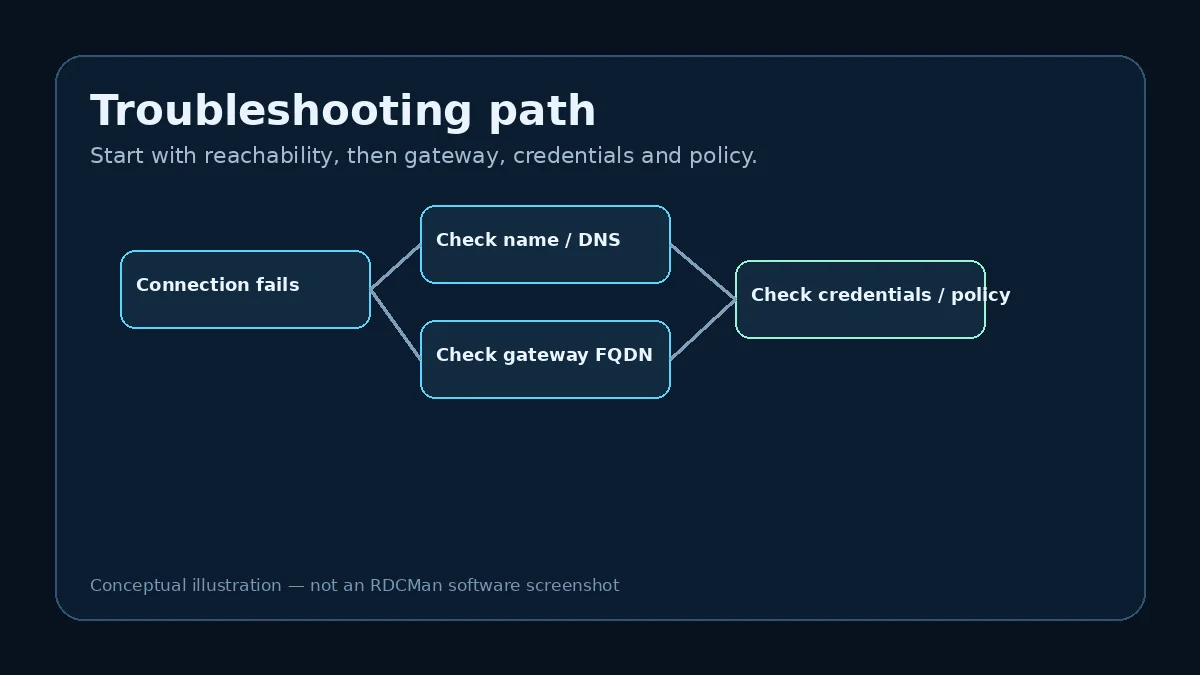
1. Confirm the target and network path
Verify that the server name in RDCMan is the intended host and that the administration workstation can resolve and reach it through the expected network path. If the same target cannot be reached with the standard Windows Remote Desktop Connection client under equivalent conditions, the issue is unlikely to be caused only by RDCMan.
Check obvious infrastructure dependencies before editing credentials: VPN state, DNS resolution, routing, firewall policy, whether Remote Desktop is enabled on the target, and whether the remote system is actually online.
2. Compare inherited and local settings
RDCMan’s inheritance model can hide the source of a setting from an operator who looks only at the server entry. Inspect the parent group for logon, gateway, display and local-resource values. A recently changed group can affect many servers simultaneously.
If only one server fails while neighboring servers in the same group work, compare the local overrides. If every server in the group fails after a change, investigate the inherited parent configuration first.
3. Validate Remote Desktop Gateway configuration
For gateway-based connections, confirm that the gateway is the correct endpoint and that its name is specified as an FQDN. Microsoft’s RDCMan FAQ specifically says gateways must be specified as fully qualified domain names in relation to gateway error 50331656.
After the name is correct, continue with organization-specific checks such as gateway reachability, certificate trust, authorization policy and the account used for the gateway path. Do not disable security controls simply to make the connection succeed.
4. Check authentication and auto-logon policy
Confirm that the username format, account scope and password are correct for the target. If saved credentials are involved, test whether manually entering the same account changes the result. That can help separate a stored-profile issue from a broader authentication failure.
Microsoft’s FAQ says auto-logon behavior can depend on the Group Policy setting “Always prompt client for password upon connection.” Follow the documented policy path for the system you administer and make changes only when they match organizational security requirements.
5. Reset application state only when justified
Microsoft documents a /reset switch that resets persisted application preferences such as window location and size. This can be useful when the application itself behaves oddly, but it should not be the first response to a normal server authentication failure.
Also consider /noopen when troubleshooting startup behavior tied to previously loaded files. Keep a backup of important RDG configuration before experimenting with state or file changes.
6. Record the smallest reproducible failure
A useful troubleshooting note identifies the server, group, connection path, gateway use, credential method, exact error and whether the standard Windows RDP client behaves the same way. That information is far more actionable than “RDCMan does not work.”
If the failure follows an application upgrade, add the RDCMan version and whether the RDG file was upgraded. If it follows a group edit, record the parent setting that changed.
Example: isolate a failed production connection
An administrator can connect to four servers in the same RDCMan group, but the fifth fails. That immediately gives a useful comparison. The shared gateway and parent settings are probably not universally broken, so inspect the failing server target, local overrides, account authorization, and reachability. Try the same host with the standard Windows RDP client under equivalent network conditions.
If the standard client also fails, shift attention away from RDCMan and toward DNS, routing, firewall policy, Remote Desktop availability, or authentication. If the standard client succeeds but RDCMan fails, compare the effective RDCMan settings and saved credentials more closely. This branching test prevents random changes to working parent configuration.
Build a reusable evidence record
For recurring incidents, record the exact RDCMan version, server name, group path, gateway use, credential profile, error text, time, and whether another RDP client works. Add any recent change to the RDG hierarchy or parent settings.
This evidence makes escalation faster and protects against “fix by memory” troubleshooting. It also helps spot patterns: several servers failing only through one gateway suggests a different problem from one server failing across every client. Keep screenshots or logs only if they do not expose credentials or sensitive infrastructure beyond the incident-handling policy.
Escalation checklist for unresolved failures
Escalate with evidence instead of a changed-but-unknown configuration. Preserve the exact error, RDCMan version, RDG file/version context, target, DNS result, network path, gateway FQDN, credential method, inherited group path, and the result of an equivalent MSTSC test where appropriate. Note the last known successful time and any recent password, gateway, firewall, server, or RDG changes.
If security policy prevents collecting some information, state that rather than replacing it with guesses. A good escalation packet lets the next administrator reproduce the failure and decide which team owns the next test—endpoint, network, identity, gateway, or server. Before escalation, return any experimental RDCMan changes that did not help to their original state so the evidence describes one known configuration rather than a stack of troubleshooting side effects.
Practical checklist
- Test the target path before changing RDCMan.
- Compare parent inheritance with local overrides.
- Use an FQDN for RD Gateway as Microsoft documents.
- Separate credential failure from stored-profile behavior.
- Use /reset for application-state problems, not as a generic network fix.
- Capture exact error text and a reproducible scenario.