RDCMan is designed for administrators who need to move among multiple remote desktop connections. Microsoft documents group-wide connection controls and thumbnail views that show live action in sessions, which can make a lab or server set easier to supervise from one application window.
The challenge is not opening many sessions; it is maintaining context. A good workflow makes it obvious which hosts are active, what task is being performed, and when a session should be disconnected rather than left open indefinitely.
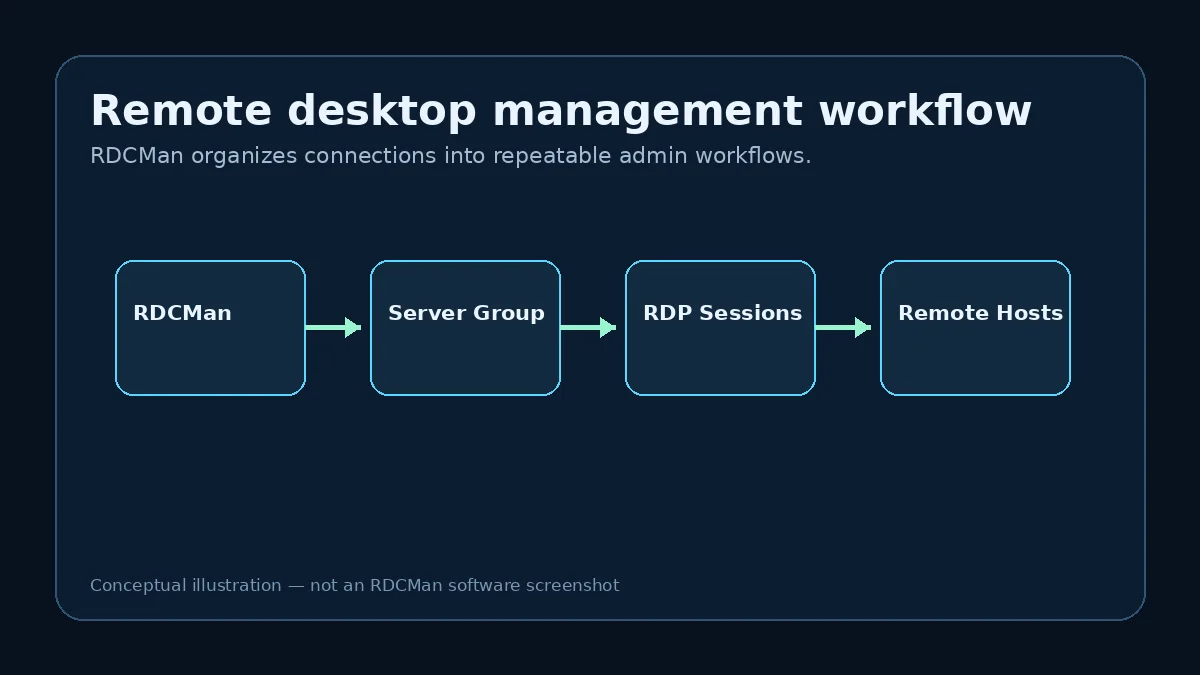
Use group boundaries to control session scope
A group should represent a set of systems that makes sense together operationally. This makes group-level connect or disconnect commands understandable. If a group contains unrelated production systems simply because they were imported at the same time, a high-scope action becomes harder to reason about.
For sensitive environments, selective connection is often safer than automatically opening an entire group. The presence of a group command does not mean it must be the default way to work.
Use thumbnails for context, not monitoring
Microsoft describes a thumbnail view with live action for servers in a group. This is helpful when moving between sessions or checking which remote desktop contains the expected console state.
Thumbnails are not a substitute for system health monitoring. They show what an RDP session displays, not authoritative service status, performance telemetry or alert state.
Keep active sessions visible through virtual groups
The Connected virtual group can help answer a simple but important question: which sessions are active from RDCMan right now? Use it before closing the application or handing off an admin workstation so forgotten sessions are less likely.
Recent and Reconnect views can also reduce navigation after planned disconnections. Use these alternate views for session state while keeping the permanent server hierarchy stable.
Separate interactive work from connection inventory
RDCMan can hold a large connection catalog without all of those systems being active at once. Open only the sessions required for the current task, especially across constrained links or when remote hosts have session limits.
This keeps the workspace easier to understand and reduces the chance of typing commands into the wrong server after switching quickly among similar desktops.
Use display choices to preserve context
Docked sessions are convenient for rapid switching within the tree. Undocked sessions may be better for prolonged work or a dedicated monitor. Consistent display labels and group naming remain important because visual similarity between Windows servers can make one session look like another.
If changing remote desktop resolution, remember Microsoft’s guidance that a reconnect is required. Plan that change outside of sensitive interactive work.
Close out the session set deliberately
At the end of a task, review active sessions, save needed configuration changes and disconnect or log off according to the system’s policy and the type of work performed. Disconnecting and logging off have different effects on the remote Windows session, so use the action appropriate to the task.
For shared administration environments, a simple end-of-task checklist prevents abandoned sessions and makes the next operator’s starting state clearer.
Example: handling an incident across several servers
During an application incident, an administrator may need an application server, database server, jump host, and monitoring console open at the same time. RDCMan can keep those RDP sessions available within one organized workspace while the permanent tree still shows which environment each system belongs to. The Connected view can help the operator review active sessions before the incident ends.
The risk is context switching. Similar Windows desktops can make it easy to type a command on the wrong host. Use clear display names, environment cues, and a deliberate session order. Open only the systems required for the current task rather than connecting the entire production group by habit.
Close-out is part of session management
When the task ends, decide whether each remote Windows session should be disconnected or logged off according to the workload and policy. Leaving sessions open indefinitely can create confusion, consume remote session capacity, or leave privileged interactive state available longer than needed.
Review Connected before closing RDCMan, save any intentional RDG changes, and document systems that must remain connected for a follow-up task. A small end-of-work routine turns multi-session convenience into a controlled operating practice.
Runbook notes for multi-session work
A team runbook should define how operators distinguish environments when several remote desktops are open, which group actions are allowed in production, and when a session should be disconnected versus logged off. Include the naming convention visible in the RDCMan tree and any workstation cues used to reduce wrong-host actions. For incident workflows, record the smallest standard set of sessions normally required rather than opening a whole group automatically. This keeps the active workspace readable and reduces unnecessary connection load.
Also define a handoff rule. If one administrator leaves active sessions for another, note which systems remain connected, what work is in progress, and whether the next operator should reconnect under a different account. Review the Connected view at the end of the task and save the RDG file only when an intentional configuration change was made. Session state and configuration state are different things; mixing them makes later troubleshooting harder.
Practical checklist
- Open only the sessions needed for the current task.
- Use thumbnails for navigation, not health monitoring.
- Review the Connected view before ending work.
- Make environment labels obvious to reduce wrong-server actions.
- Use disconnect versus logoff intentionally.