RDCMan errors can come from the application, the saved configuration, Windows policy, Remote Desktop Gateway or the remote target. The useful fix is therefore the one tied to the actual layer of failure. The current Microsoft documentation includes several specific answers that are more reliable than generic advice copied from older RDCMan releases.
The examples below focus on documented or clearly bounded scenarios. If an error is not covered by Microsoft’s current page, preserve the exact message and compare behavior with the standard Windows RDP client before guessing at a fix.
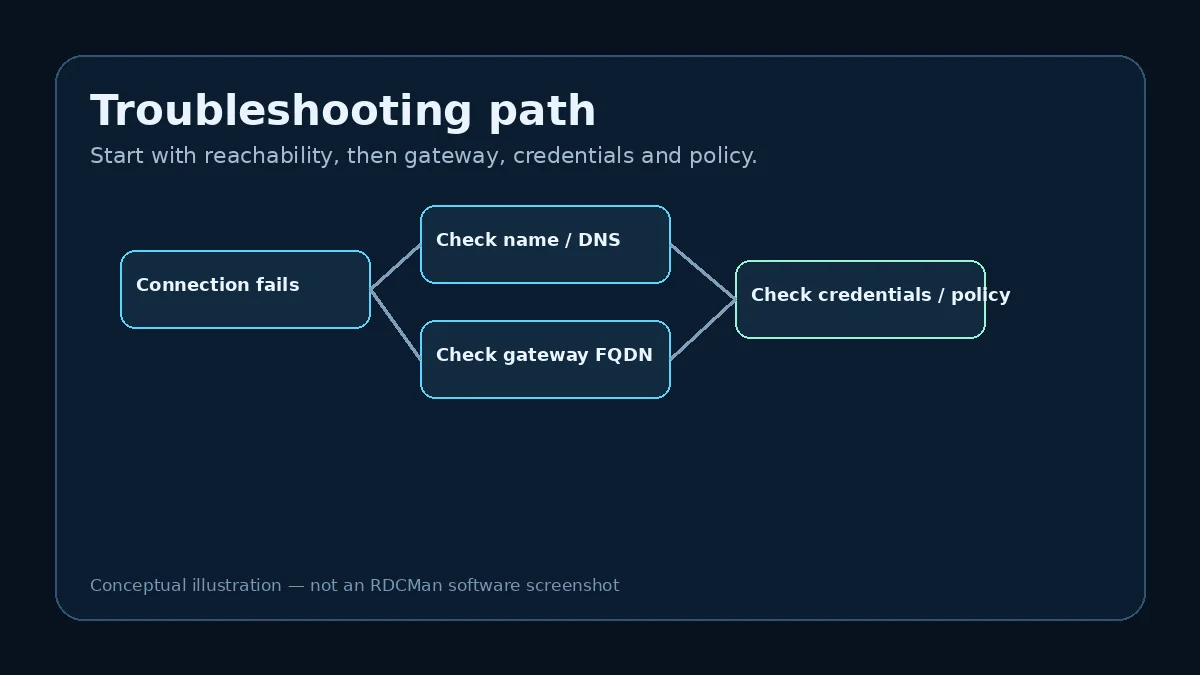
Gateway error 50331656
Microsoft’s RDCMan FAQ associates this gateway error with the way the gateway is specified and says gateways must be entered as fully qualified domain names. Check the configured gateway name first and replace a short host name with the correct FQDN when your environment requires it.
If the FQDN is already correct, continue with gateway reachability, certificate, authorization and organization-specific policy checks. Do not weaken TLS or gateway security merely to suppress the error.
Auto-logon does not work
Microsoft says auto-logon can depend on the Group Policy setting that controls whether the client is always prompted for a password. The current FAQ directs administrators to the relevant Terminal Services encryption and security policy and says the “Always prompt client for password upon connection” setting must be disabled for the documented behavior.
Policy changes can affect security posture. Confirm that automatic logon is approved for the target environment before changing the policy.
Remote desktop will not resize while connected
This is not necessarily an error. Microsoft says you cannot resize the remote desktop while the server is connected. Disconnect and reconnect to establish the new size, or configure RDCMan to reconnect with the changed resolution in the supported display scenarios.
If the window itself changes size but the remote desktop remains at its previous resolution, that behavior is consistent with the need to renegotiate the session.
RDG file changed after an upgrade
RDCMan v3.12 includes a compatibility warning: RDG files saved with this version are not compatible with older program versions. Microsoft says a legacy file opened and saved by the current version is backed up as filename.old.
If another administrator can no longer open a shared file with an older release, coordinate the RDCMan version rather than repeatedly editing the file. Restore from a known-good backup if a rollback is required.
RDCMan reopens unwanted files or starts in a bad state
Microsoft documents /noopen to start without opening files that were loaded at the previous shutdown. It also documents /reset for persisted application preferences such as window location and size.
Use these switches to isolate startup-state problems. Make backups before manipulating important configuration, and do not use /reset as a substitute for diagnosing network or authentication failures.
One server fails while the group works
Compare the failing server’s local overrides with siblings that connect successfully. Check the actual target name, local credential selection, gateway override and display or resource settings. A single-server failure is often easier to isolate because the parent group provides a working reference.
If the same target also fails in the standard Windows RDP client, shift troubleshooting toward the server, network or authentication layer.
Example: map symptoms before applying fixes
Suppose an administrator sees a gateway error on every server under one group after a configuration edit. Because the failure follows the group and uses a gateway, start with the inherited gateway name and Microsoft’s FQDN guidance rather than resetting RDCMan or changing every saved password. If only one server has a display-size complaint after a local override, start with that server’s display inheritance and reconnect behavior instead.
This symptom-to-layer mapping reduces collateral changes. Each fix should be tied to evidence: gateway errors to gateway configuration, auto-logon behavior to authentication and policy, resize issues to session negotiation, RDG upgrade issues to file/version compatibility, and startup behavior to persisted application state.
Know when to stop changing the client
If the same host fails in MSTSC or another appropriate Microsoft RDP client, changing RDCMan repeatedly is unlikely to solve a network or remote-host problem. Shift to the server, DNS, firewall, gateway, authentication, or Remote Desktop service path.
Likewise, if many unrelated connections fail at once, look for a shared dependency before editing individual entries. Record the original state before changes so a troubleshooting attempt can be reversed. The objective is not to make the error disappear at any cost; it is to identify and correct the failing layer.
Create an error-to-evidence table
For recurring support work, maintain a small internal table with columns for symptom, failing layer, evidence to collect, and approved first checks. Gateway errors should capture gateway FQDN and reachability; auto-logon issues should capture credential method and relevant policy; resize complaints should record the requested resolution and whether the session was reconnected; RDG problems should capture the file’s last-saved RDCMan version; startup-state problems should record whether /noopen or /reset changes behavior. This turns repeated troubleshooting into a controlled diagnostic process.
Do not store passwords or sensitive connection strings in that table. The goal is to preserve diagnostic context, not secrets. When a problem is fixed, record the actual cause rather than only the final click sequence. A note such as “gateway short name replaced with approved FQDN” remains useful; “changed settings until it worked” does not. Over time, this evidence also shows whether the environment has a recurring DNS, gateway, policy, or inventory-quality problem outside RDCMan.
Practical checklist
- Use the gateway FQDN for error 50331656.
- Treat auto-logon as a policy-sensitive behavior.
- Reconnect for remote desktop resolution changes.
- Coordinate RDCMan versions around RDG upgrades.
- Use /noopen and /reset for startup state, not generic connectivity failures.