An RDG file is the working configuration container behind an RDCMan connection tree. It represents groups, servers and the settings associated with them, which makes it much more important than a casual “recent connections” list. If an administrator loses or corrupts a carefully maintained RDG file, rebuilding the connection catalog can take significant time.
The current Microsoft documentation also makes RDG files version-sensitive. RDCMan v3.12 includes an explicit warning that files saved with this version are not compatible with older program versions. When a legacy RDG file is opened and saved, Microsoft says the original is backed up with a .old suffix.
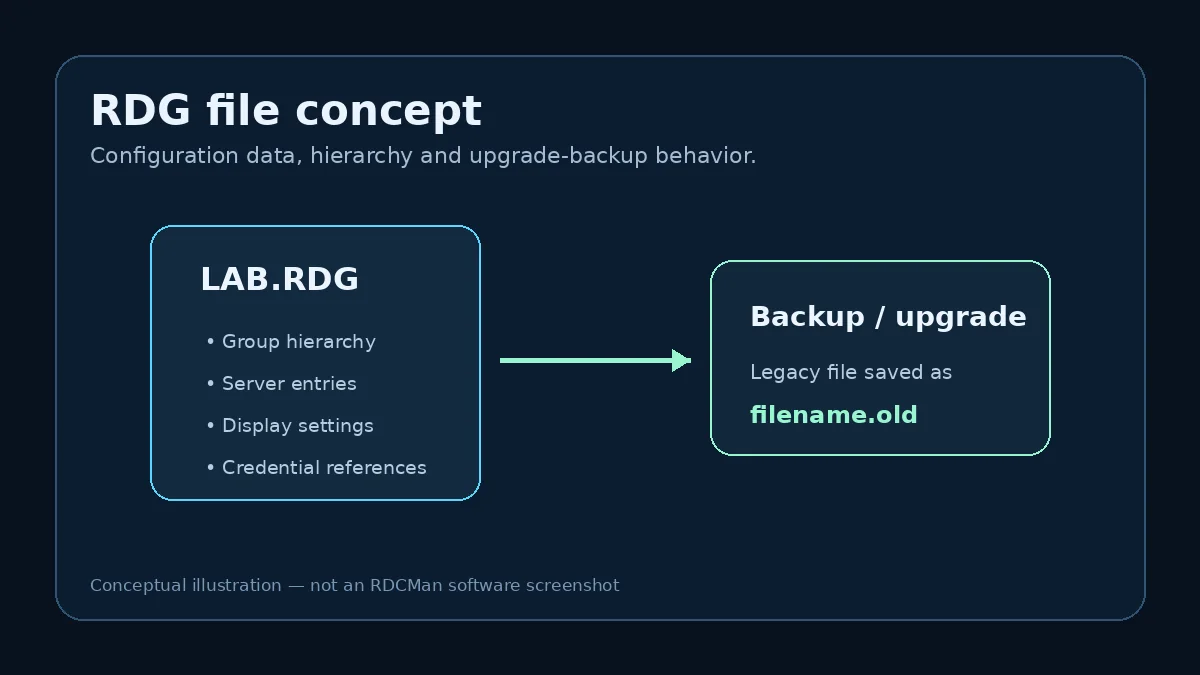
What an RDG file represents
At a practical level, the RDG file represents the saved server hierarchy and the connection preferences RDCMan needs to recreate that workspace. The file can therefore contain infrastructure metadata such as server names, group names and connection settings, even when credential secrets are protected separately by the mechanisms Microsoft documents.
Treat the file as administrative configuration. Store it in a controlled location, back it up, and do not share it casually simply because it uses a configuration-file extension rather than an executable format.
Why hierarchy and inheritance live together
The RDG file does not merely hold a flat list of targets. Its group structure is part of how settings are inherited. Moving a server, changing a parent group or altering a shared credential reference can affect effective behavior without modifying every server entry individually.
This is why copying fragments between different files or reorganizing a tree should be tested. The relationships between objects are as important as the individual values.
The v3.12 compatibility warning
Microsoft states that RDG files from the current RDCMan version are not compatible with older program versions. That means a file saved after an upgrade should not be assumed to work on an administrator workstation that has not been upgraded.
Microsoft also says that when a legacy RDG file is opened and saved, a backup is created as filename.old. Keep that automatic backup, but create your own known-good copy before a planned upgrade as well. An intentional backup is easier to identify and restore during a controlled rollback.
If several administrators exchange the same RDG file, coordinate the RDCMan version before anyone saves it with a newer release.
Backup strategy for important RDG files
Use versioned backups for files that represent production or lab infrastructure. At minimum, create a copy before application upgrades, large imports and major group restructures. If the file is stored in a location managed by enterprise backup or version control, confirm that the storage method is appropriate for the sensitive metadata involved.
Do not commit credential-bearing administrative configuration to a broadly readable repository simply to gain version history. Access control is part of the backup design.
Moving an RDG file to another workstation
Portability depends on more than the file itself. Microsoft’s credential-protection options can depend on the local user context or an X.509 certificate, so a copied configuration may not behave identically under a different account or machine. Plan credential handling separately from the connection hierarchy.
After moving a file, verify a small selection of connections, inherited settings and any certificate-dependent credentials before relying on it operationally.
Troubleshooting RDG issues
If a file behaves unexpectedly after an edit or upgrade, first stop making additional changes and preserve the current and backup copies. Confirm the RDCMan version used to last save the file and whether another administrator may have opened it with a newer release.
For a configuration problem rather than a format problem, inspect the hierarchy and inheritance chain. A server appearing under a different group or receiving a new parent setting can look like file corruption when the actual issue is an effective-setting change.
Example: safe RDG upgrade workflow
A team has a shared RDG file used by three administrators. Before upgrading RDCMan, one administrator copies the file to a dated backup location and records the old application version. The team upgrades one workstation first, opens a copy of the RDG file, verifies group hierarchy and representative connections, then saves it and confirms the automatic legacy backup behavior. Only after the validation succeeds do the other workstations move to the same RDCMan release.
This sequence matters because the current Microsoft warning makes the file format a coordination point. A successful executable upgrade is not enough; the configuration must also remain usable by the people who depend on it.
Handle RDG portability as a security task
Copying an RDG file to another workstation can expose server naming and topology details, and credential protection may depend on the local user or certificate context. Move files only through approved storage, preserve access controls, and test credential behavior on the destination instead of assuming every saved value will decrypt identically.
If the team needs broad sharing, central approvals, credential checkout, or audited access, consider whether a shared desktop configuration file is still the right operating model. RDCMan can remain useful for connection organization while a dedicated system handles the sensitive shared-secret lifecycle.
Practical checklist
- Treat RDG files as sensitive administrative configuration.
- Back up before upgrades, imports and large reorganizations.
- Do not expect a v3.12-saved file to work in older RDCMan.
- Coordinate versions when RDG files are shared.
- After moving a file, verify credentials and inherited settings on the destination workstation.